

Tour
Welcome to First-Fridays.us! This page walks you through everything you can do on the site — from tracking your First Friday attendance to managing family members and keeping your profile up to date.
Attendance Log
Getting Started
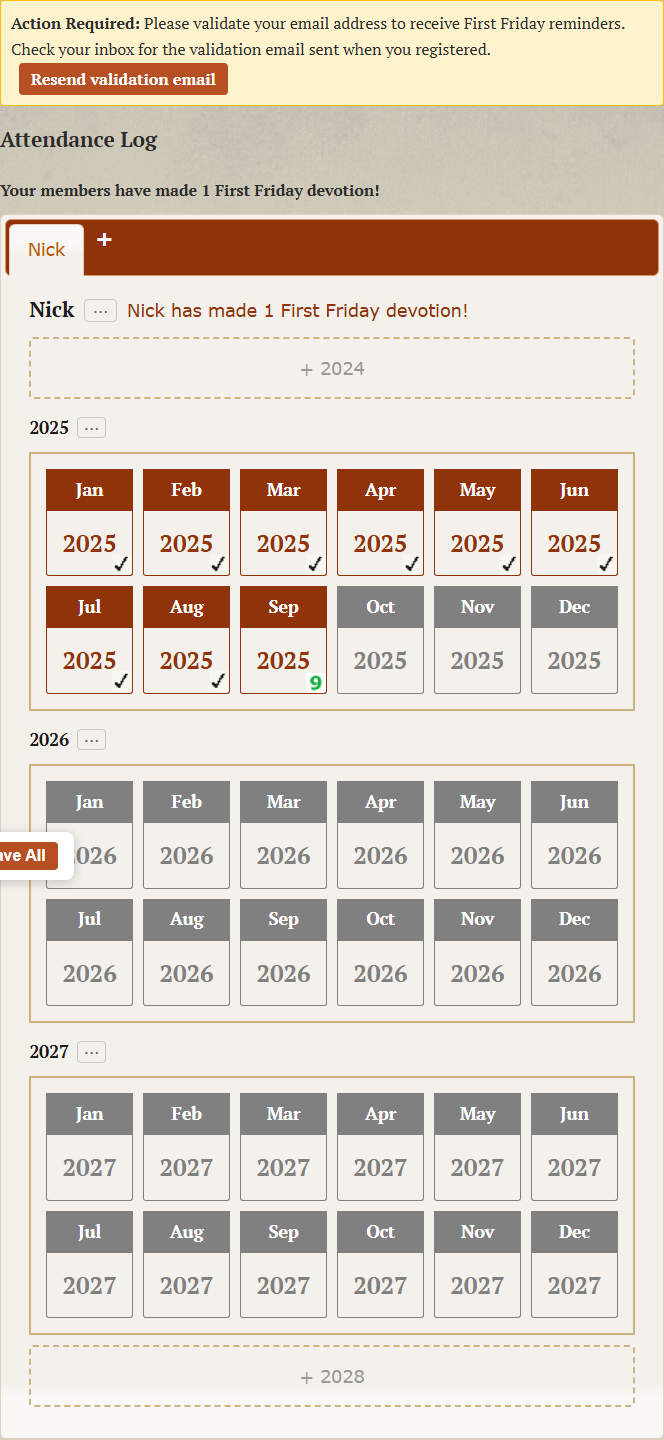
After registering, you will be taken to the Attendance Log. This is your personal
dashboard for tracking progress on the Catholic First Fridays Devotion. Each family
member gets their own tab, and the calendar grid lets you mark each month you attended
Mass on a First Friday.

Logging Attendance
To mark attendance, click the month and year box when you attended Mass. The box will
turn red with a checkmark to show it is selected. You can select as many months as you
like. Remember to save your changes before leaving the page.

Un-logging Attendance
Made a mistake? Just click a selected month again to deselect it. The mark will be
removed. Be sure to save before leaving the page.

Reaching Nine First Fridays
Once you have attended Mass on nine consecutive First Fridays, the log will celebrate
your achievement! The ninth month displays a special icon and a message appears:
“Nick has made 1 First Friday devotion!” If you complete additional sets
of nine the counter increases.
The Save Button
A floating “Save All” button stays visible at the bottom of the page as
you work. Any edits you make — selecting dates, adding members, renaming, or
removing — are shown immediately on screen but are not permanently saved
until you click this button. After saving, a confirmation message appears briefly.

Managing Family Members
Adding a Family Member
Click the + tab at the end of the tab bar. A small text field appears
right in the tab bar — type the person’s name and press Enter.
A new tab is created instantly. Each member has their own independent attendance calendar.
Click “Save All” to make the addition permanent.

After adding members, you can switch between them by clicking their tab.

The Member Menu
Each member has a three-dot menu (⋯) next to their name. Click it
to see options for Rename Member and Remove Member.
Clicking outside the menu or clicking the dots again closes it.

Renaming a Member
Select “Rename Member” from the menu and a text field appears with the
current name. Type the new name and press Enter to confirm, or press
Escape to cancel. The tab header and heading update immediately.
Don’t forget to click “Save All” to keep the change.

Removing a Member
Select “Remove Member” from the menu and a confirmation dialog will appear.
This action deletes all attendance data for that member, so be sure you
really want to remove them. Click OK to confirm or Cancel to keep the member. Click
“Save All” to make the removal permanent.

Managing Years
Adding a Year
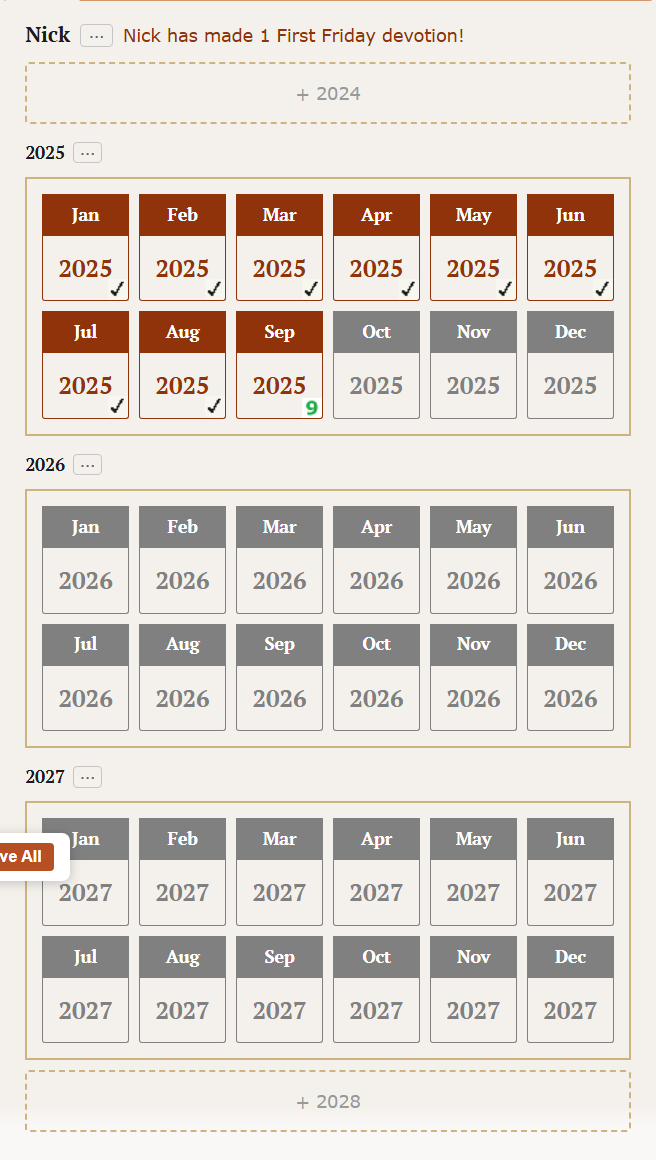
At the top and bottom of each member’s calendar you will see a gray
“+ year” box. These are called ghost boxes. Click the one at the top to
add a prior year, or the one at the bottom to add the next year. This lets you extend
your attendance record as far back or forward as you need.
Deleting a Year
Each year heading has its own three-dot menu (⋯). Click it and
select the delete option to remove that year from the calendar. A confirmation dialog
will appear before the year is deleted. This affects the current member’s view
and any attendance data for that year. Remember to click “Save All” afterward.

Your Profile
Editing Your Profile
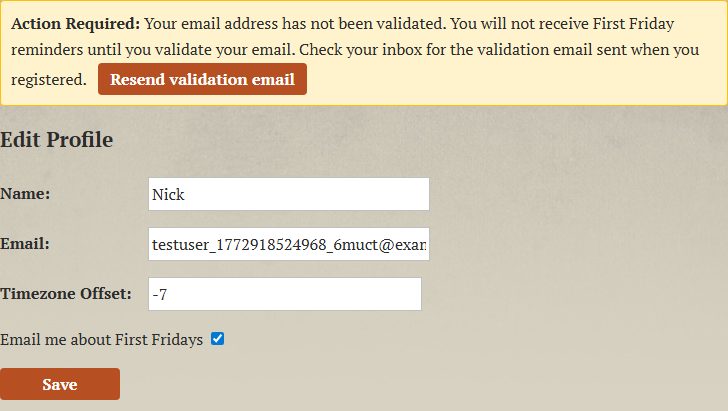
Click “Profile” in the navigation menu to view and edit your account settings. On the Profile page you can update:
- Name — your display name shown on the site
- Email — used for login and First Friday reminders
- Timezone Offset — ensures reminders arrive at the right time for your location
- Email Reminders — check or uncheck the box to opt in or out of First Friday reminder emails
Click “Save” to apply your changes.
Changing Your Password
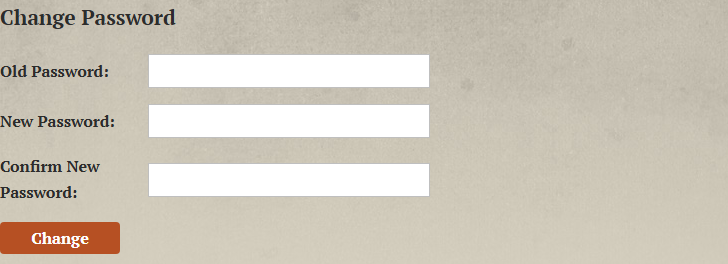
Navigate to Profile > Change Password from the navigation menu. Enter your current
password, then type and confirm your new password. Click “Change Password”
to update it.
Email Validation
If you opted in to First Friday reminders, you will need to validate your email address. When you register, a validation email is sent to the address you provided. Click the link in that email to confirm. If you haven’t validated yet, a yellow banner appears at the top of the Attendance Log and Profile pages with an option to resend the validation email.